
The one-line distinction
Choose a group when members need to talk, ask questions and collaborate. Choose a channel when admins mainly publish updates to subscribers. The two formats can be used together.
Groups are no longer the only way to organise a large audience. Since July 2026, Telegram lets you link several groups, channels and bots into a Community around a shared topic — see Communities: link groups, channels and bots together. Each linked chat keeps its own members, messages and rules.
Groups and channels compared
| Dimension | Group | Channel |
|---|---|---|
| Main purpose | Discussion, collaboration and Q&A | Broadcasting announcements and content |
| Interaction | Members post according to permissions | Admins publish to subscribers |
| Scale | Up to 200,000 members | Unlimited subscribers |
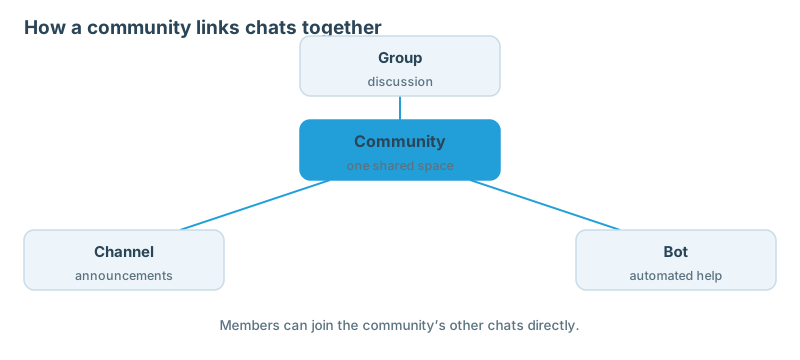
Community: links several groups, channels and bots around one shared topic. Members can see the Community’s other chats and join them instantly, without an invite link. Unlike a group, a Community is not a single chat — it is a container for chats that keep their own rules.
When to choose a group
Groups work well for interest communities, project collaboration, course Q&A, customer support and team discussion. Set clear rules, limit spam and assign admin permissions carefully.
When to choose a channel
Channels work well for product announcements, news, course updates, event notices and one-to-many publishing. If readers also need to discuss posts, pair the channel with a discussion group.
Communities: link groups, channels and bots together
Several groups, channels, and bots can now be linked together into communities around a shared topic. A Community is the layer between a single group and a scattered set of chats: your announcement channel, discussion group and helper bot belong to one place, while each chat keeps its own members, messages and access rules.
Community members can see the Community’s other chats and join them instantly — no invite link needed. Bring someone into one chat and the Community shows them the rest.
Not every linked chat has to be public inside the Community. Chats can be Visible to all members, or Hidden from everyone except community admins and members of that chat. Use Hidden chats for moderators, paying members, or groups that should not be discoverable by the whole Community.
Communities are collaborative by default: any member can add more chats. If that is too open, restrict it in settings — when adding chats is limited, new chats appear as suggestions instead of joining automatically. Check this setting first, before members add chats you did not plan for.
Communities also save space in your chat list. Toggle whether a Community appears as separate chats or as one chat that expands when you open it: separate chats while a Community is small, one chat once the list starts crowding out everything else.
When should you use a Community instead of one large group? Use a group when everyone should see the same conversation — groups support up to 200,000 members. Use a Community when different audiences need different chats: an announcements channel for everyone, a discussion group for members, and a bot for support, all linked under one name.
Managing a Community
- Visible or Hidden: for each linked chat, choose whether all Community members can see it, or only community admins and members of that chat.
- Who can add chats: Communities are collaborative by default, so any member can add more chats. Restrict this in settings if you want new chats to arrive as suggestions for admins to approve instead.
A launch checklist
- Define the goal: discussion, publishing or both.
- Choose public or private access and understand invite-link sharing.
- Set admin permissions instead of giving every admin full control.
- Publish short community rules and a way to report spam.
Invite links still work for individual groups and channels. But inside a Community, members do not need one for the Community’s other chats: they can see the visible chats and join them directly. Share one invite link to the entry chat; the Community handles discovery of the rest.
Keep your chat list tidy. A Community can appear as separate chats or as a single item that expands when you open it. Toggle this in the Community’s settings: separate chats suit a Community you check constantly, one chat suits one you dip into occasionally.