
How Telegram delivers a login code
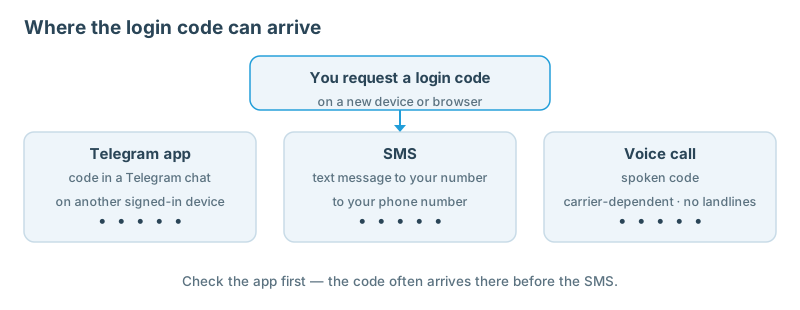
| Channel | Where the code appears |
|---|---|
| In-app Telegram message | A chat with Telegram on a device where you are already logged in |
| SMS | A text message to your phone number |
| Phone call | A voice message that reads the code aloud |
One channel does not exist: email. Telegram does not send login codes by email. Your account is tied to your phone number, not to an email address. A recovery email only helps if you forget your Two-Step Verification password; it never receives login codes. Work in this order: first find out where the code went, then fix the channel that failed.
Step 1 — Check the Telegram app on your other devices first
If you recently used Telegram on another device — a second phone, a tablet, Telegram Desktop, or Telegram Web — Telegram may send the code through Telegram itself instead of by SMS. It arrives as a message in a chat with Telegram, a verified profile with a blue check mark.
- Open Telegram on every device where you are still signed in.
- Open the chat named Telegram and read the newest message.
- Enter that code on the device you are logging in to. In this guide a code is shown only as • • • • •, never as real digits.
Telegram's FAQ warns that in-app codes are not a substitute for an up-to-date phone number. Update the number on your account while you still have access, or you risk losing the account permanently. If no device is signed in anywhere, go to Step 2.
Step 2 — Check the number, in international format
- Read the number on the login screen digit by digit.
- Enter it in international format: a plus sign, the country code, then the city or carrier code, then your number. Telegram's FAQ gives this as
+(country code)(city or carrier code)(your number). - Check the country code first — it is the part people get wrong most often, especially after moving country or switching between a personal and a work number.
- Drop any leading zero from the national format; it is not part of the international format.
- Confirm the number is the one connected to your Telegram account. Each phone number is a separate account. If you changed numbers and never updated Telegram, the code is going to the old number.
If the number is wrong, correct it and request a fresh code. If it is right, the problem is delivery, not the address — continue to Step 3.
Step 3 — Work through the SMS and carrier checks
SMS delivery depends on your phone, your SIM and your carrier, none of which Telegram controls.
- Check the phone holding the SIM. The SMS goes to the number on your account, not to the device you are logging in from.
- Check signal and inbox. Move somewhere with reception. Search your SMS inbox, including spam and blocked-message folders — some phones filter short-code messages automatically.
- Check the SIM is active. A suspended, expired or replaced SIM cannot receive SMS. After a SIM change, confirm the new SIM carries the same number.
- Check for carrier filtering. If other services' messages arrive but Telegram's do not, ask your carrier whether Telegram messages are filtered or blocked on your line.
- Restart the phone and the app. Close Telegram completely, reopen it, and restart the phone holding the SIM.
Do not keep requesting SMS codes in a loop: if delivery is blocked, the next request to the same blocked channel will fail the same way. If you can receive calls on the same number, try Step 4.
Step 4 — Try the code by phone call
If SMS is not getting through, Telegram may offer to read the code to you in a phone call. This fallback has limits stated in Telegram's FAQ.
- On the login screen, select the option to receive the code by phone call.
- Answer the call, listen for the code, write it down, and enter it.
- If the option does not appear or the call never arrives, the limit may be carrier-side: Telegram states that phone-call codes may be unavailable for particular carriers.
- A phone-call code may also require Two-Step Verification to be enabled. Only change security settings from a device where you are already logged in.
- Telegram accounts connect only to a mobile number. Landlines are not supported, so a voice code cannot go to a landline.
If the call option is unavailable and SMS is not arriving, your remaining options are the in-app channel (Step 1), waiting out a limit (Step 5), or a passkey created earlier (Step 7). Contact your carrier about filtering in parallel — a carrier block will affect every future login.
Step 5 — If you requested several codes, stop and wait
Repeated attempts can trigger a temporary limit. Telegram does not publish how long it lasts, and this guide does not guess at a figure.
- Stop requesting new codes. Each request can extend the wait.
- Check signed-in devices. The code may already be in the Telegram chat there.
- Check the number and SIM (Steps 2 and 3).
- Try again later, once. A single fresh attempt after a break, not several in a row.
- Do not use unofficial apps or "code recovery" services. They cannot lift a Telegram limit, and handing your number to an unknown service creates a new security problem.
Step 6 — Two-Step Verification and the recovery email
A missing code and a forgotten password are different problems. Two-Step Verification is an optional extra password: once enabled, login needs the code and your password.
- If Telegram asks for a password after the code, enter the Two-Step Verification password you set. The code alone will not finish the login.
- If you forgot the password, use the recovery email — if you set one. It exists for one purpose: helping you regain access if you forget the Two-Step Verification password.
- The recovery email does not receive login codes and is not an alternative login method. If you never set one, there is no email route to recover a forgotten password.
- Set or check it while logged in: Settings > Privacy and Security > Two-Step Verification. It cannot be set from the login screen.
- Protect the recovery mailbox too — Telegram's FAQ advises a strong password and two-step verification on that email account where possible.
For a full walkthrough of these settings, see our Telegram privacy settings guide.
Step 7 — Use a passkey instead of an SMS code
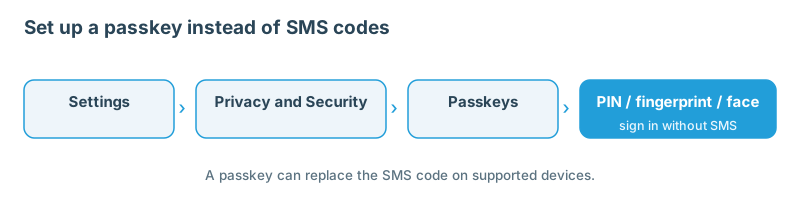
Telegram added passkeys in its December 12, 2025 update. Its FAQ describes them as an additional login method usable instead of SMS.
- On the login screen, choose to log in with a passkey.
- Confirm with your device PIN or biometric data, such as Face ID or a fingerprint — the same way you unlock your device.
- Passkeys work even while travelling or without SMS service, because no text message is involved.
- A passkey does not replace your phone number. Telegram's announcement is explicit: even with a passkey, keep your account registered to an active phone number you control.
- If Two-Step Verification is on, you may still be asked for that password after the passkey. The passkey replaces the SMS step, not the password step.
- Set one up while you have access: Settings > Privacy and Security > Passkeys. Back it up through a password manager such as iCloud Keychain or Google Password Manager, in case you upgrade or lose the device.
A passkey only helps if you created it before the problem started. If you get back in by another method here, create one before logging out again.
Quick troubleshooting table
| Symptom | Most likely cause | Try first |
|---|---|---|
| No SMS, signed in elsewhere | Code sent in-app, not by SMS | Check the Telegram chat on other devices |
| No code anywhere | Wrong number or country code | Re-enter the number in international format |
| Other SMS arrives, Telegram's does not | Carrier filtering | Ask your carrier; try the phone-call option |
| Code accepted, password requested | Two-Step Verification is on | Enter the password or use the recovery email |
| Nothing works, no device signed in | Lost access to the number | Recover the number with your carrier first |
Safety: what Telegram will never ask for
- Telegram will never ask for your Two-Step Verification password or any verification code. Anyone who asks — in a chat, by email, or on the phone — is not Telegram.
- Official service notifications come only from two verified chats: Telegram (42777) and @AbuseNotifications (4240005).
- @smstelegram is the only official Telegram login-help account on X. Telegram has no other support accounts on social media.
- Never share a login code with anyone. A code appears in this guide only as • • • • •.
- Never enter your code or password on a page reached from a link in a message. Log in only through the official Telegram app or Telegram Web.
- Do not pay anyone to "unblock" or "recover" your account. Telegram does not charge for login help.
If your account is frozen or limited rather than missing a code, see Why Is My Telegram Account Frozen or Limited — and How Do I Appeal?.
Frequently asked questions
Can I get the login code by email?
No. Telegram does not send login codes by email. The code arrives through the Telegram app, by SMS, or by phone call. A recovery email only helps if you forget your Two-Step Verification password. Any site or message offering to send your Telegram code to an email address is not Telegram.
Why did the code go to the Telegram app instead of SMS?
Because you recently used Telegram on another device. When a session is active elsewhere, Telegram may deliver the code in-app rather than by SMS. This is normal behaviour, not an error.
I changed my phone number. Can I still get the code?
Only if you updated the number on your account before losing the old one, or still have a device signed in. Each phone number is a separate account. If the old number is gone and no device is signed in, Telegram's FAQ is direct: support cannot help unless you have access either to the phone number or to Telegram itself on one of your devices. Recover the number with your carrier first.
What is "Log In With Telegram" and does it help me get a code?
No — it is unrelated. "Log In With Telegram", announced March 1, 2026, lets you use your Telegram account to sign up and log in to third-party apps and websites. It does not change how Telegram sends its own login codes, and it does not deliver a code by email.
I entered the code but Telegram asks for a password I don't remember. What now?
That is your Two-Step Verification password. If you set a recovery email, use the reset flow on that screen. If you never set one, there is no email route to recover it — which is why the recovery email should be set while you still have access (Step 6).
How do I stop this happening next time?
Keep the number on your account up to date, and change it in Settings before giving up the old number. Turn on Two-Step Verification and set a recovery email while logged in. Create a passkey in Settings > Privacy and Security > Passkeys, so a missing SMS does not lock you out. Review the settings in our Telegram privacy settings guide, Telegram Web and Telegram Desktop guides.
Related guides
Official references
- Telegram FAQ — Login and SMS; Getting a code via Telegram; Getting a code via a phone call; Service Notifications; @SmsTelegram, login help on X
- Telegram FAQ — How does 2-Step Verification work?; What is a Passkey?
- Telegram Blog — Passkeys, Gift Purchase Offers and More, December 12, 2025
- Telegram Blog — Member Tags, Login with Telegram, Disable Sharing, GIF Editing, Date Formatting, Voting Timestamps, March 1, 2026